
Squarespace Forms: What They Can't Do, and How to Fix It
About Caresa Hope: Founder of HopeSpring Digital and a digital marketing strategist specializing in SEO, AI-ready content, conversion-focused web design, and business strategy that helps small businesses turn online visibility into measurable growth.
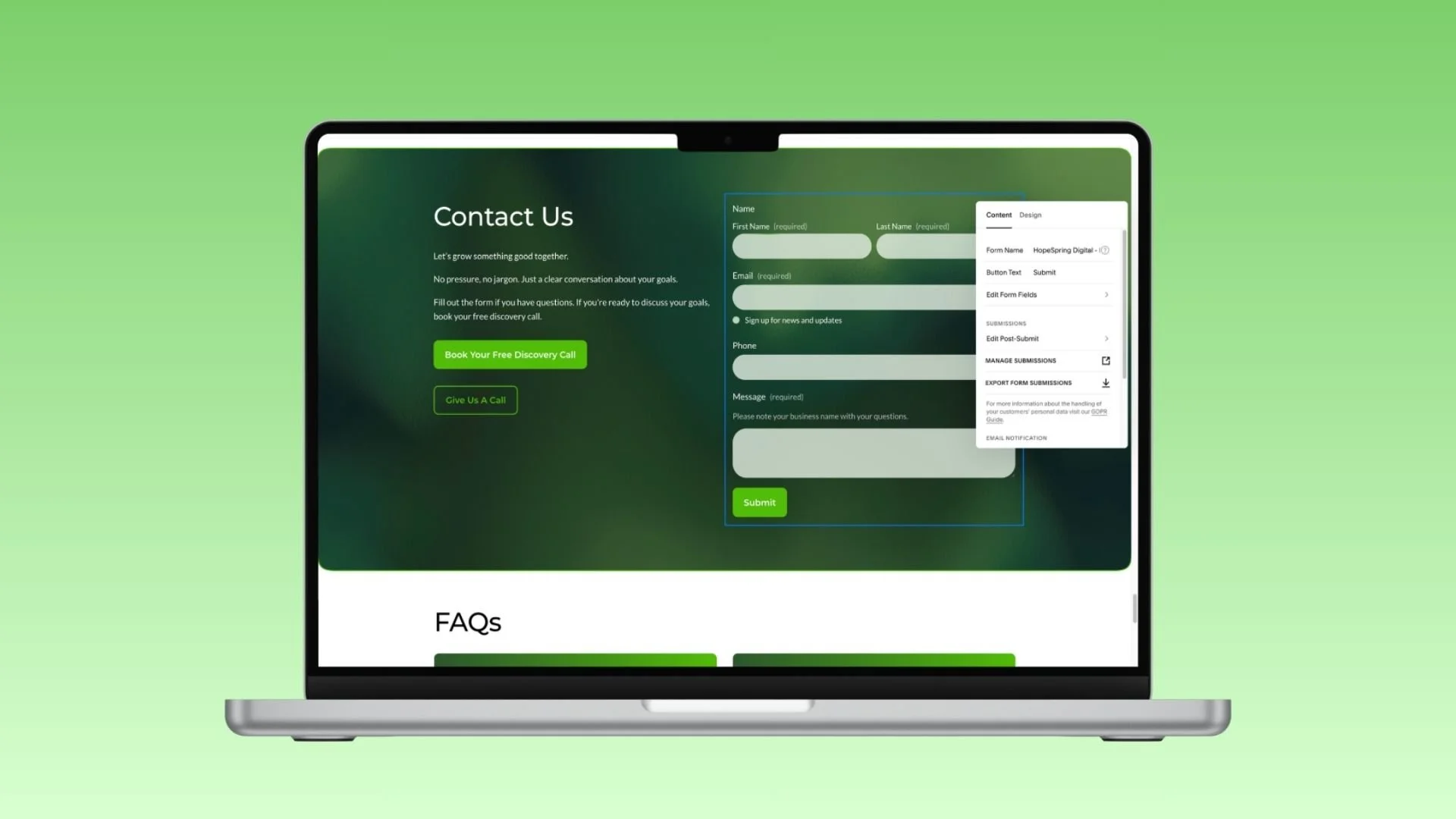
You launched your Squarespace site six months ago. It looks great. You added a contact form, pointed it at your email, and moved on with running your business.
Then last Tuesday, a potential client told you they'd reached out through your site three weeks ago. Never heard back. You dug through your inbox. Nothing. Checked spam. There it was. Along with two others.
I see this happen a lot. Squarespace forms work, but only up to a point. And the point where they stop working is usually the point where you start losing real money.
So here's a plain-English guide to what Squarespace forms actually do, what they don't, and how to build a lead system that stops leaking. Nothing fancy, nothing that needs a developer, but enough to keep real leads from dying in spam folders.
Key Takeaways
Squarespace's native forms work for simple brochure sites, but they have real limitations around conditional logic, multi-step flows, spam protection, autoresponders, and CRM features.
The biggest risk is not the form itself, it's what happens after submission. Leads die in spam folders, broken connections, and inboxes nobody is watching.
Elfsight is my favorite alternative for Squarespace because you can build one form, embed it on multiple pages, and have all submissions flow into the same spreadsheet and notifications.
A real lead system has three layers: redundant storage (email plus Google Sheets), a CRM like HubSpot connected through Zapier, and conversion tracking in GA4.
Schema markup on your contact page helps both Google and AI search tools like ChatGPT understand how to reach you, and it takes about ten minutes to add.
If your setup has any gaps, a single hourly session is usually enough to fix it.
What Squarespace Forms Get Right
Fair is fair. Squarespace forms are:
Fast to set up
Built right into the platform, no plugins to chase down
Clean looking without any tweaking
Free with any paid Squarespace plan
Connected to Google Sheets, Mailchimp, and Zapier out of the box
If you're running a simple brochure site and a "contact us" form is all you need, that's genuinely fine.
But if your website is supposed to be bringing in leads, the native forms have real gaps. Let me walk through what I see.
The Limitations That Actually Cost You Money
1. No Conditional Logic
Native Squarespace forms are static. Everyone who lands on the form sees every field. You can't say "if they pick plumbing, show the plumbing questions" or hide fields based on their answers.
For a service business with more than one offering, that leaves you with two bad options. A long, cluttered form that kills conversions. Or a generic one that doesn't give you enough information to quote the job.
2. No Multi-Step Forms
Native forms are one long scroll. No "Step 1 of 3," no progress bar, no breaking a big ask into smaller pieces. Long forms convert worse than short ones. Ten fields stacked on top of each other is a wall people don't want to climb.
3. Weak Spam Protection
Squarespace has basic reCAPTCHA, but it's not enough. If your site gets any real traffic, you're going to get spam form fills. I've had clients stop checking their form notifications because the bots trained them to ignore the inbox. And of course, that's when a real lead comes through.
4. No Autoresponder on Lower Plans
On Personal and Business plans, you can't send an automatic "thanks, I got your message, I'll be in touch within 24 hours" email when someone submits. You need the Advanced plan to unlock that, and for most small businesses the Advanced plan is overkill.
This one matters more than it sounds. Response time is one of the biggest factors in whether a lead turns into a client. If you don't acknowledge them right away, and you don't see the email until that afternoon, you've already lost ground to the business that answered in five minutes.
5. No File Uploads on Lower Plans
File upload fields need the Business plan or higher. If you're a roofer who wants homeowners to send photos of storm damage, or a designer who wants clients to share inspiration images, you're stuck. There are also frequent issues with viewing photo/file submissions.
6. Notifications Are Barely Customizable
You can send submissions to one or more email addresses. That's the whole feature. You can't route based on what the person picked ("commercial goes to me, residential goes to my assistant"). You can't send to your phone by text. You can't post to Slack. Not without help.
7. No CRM Built In
Once a form is submitted, Squarespace has no idea what happens next. No pipeline, no lead status, no follow-up reminders, no record of past conversations. It's a form, not a sales system. If you don't have a way to move that lead into something that tracks follow-up, it'll get buried in your inbox.
8. Connections Can Quietly Break
When you build a form, you pick where submissions go (email, Google Sheets, Mailchimp, Zapier). If one of those connections breaks and you don't notice, submissions disappear. I've audited sites where the Google Sheet got disconnected six months earlier and nobody caught it. All those leads existed only in email, and filters swallowed half of them.
9. The Google Sheets 50-Sheet Cap
This one hides until you grow. Squarespace's native Google Sheets connector limits you to 50 connected sheets per Google account. If you manage a few sites, or one site with a lot of forms, you'll hit that ceiling and have to connect a second Google account to keep going. Not the end of the world, but it's the kind of surprise that eats an afternoon.
10. Confirmation Pages Are Locked Down on Lower Plans
The Advanced plan lets you redirect to a custom thank-you page after someone submits. Lower plans show a generic confirmation message and that's it. If you can't send people to a real thank-you page, you lose the easiest way to track conversions in GA4 and Google Ads.
My Favorite Alternative: Elfsight
Before I get into how to work around all this with the native form, I want to call out the tool I actually reach for most often: Elfsight.
Elfsight is a third-party form builder that embeds into Squarespace with a simple Code Block. What makes it my go-to:
One form, multiple pages. This is the big one. With Squarespace's native form, each page needs its own form, and each form needs its own connections. With Elfsight, I build the form once, drop the embed code on every page I want, and all submissions flow into the same spreadsheet and the same notifications. No duplicate setup, no inconsistencies, no 50-sheet ceiling.
Conditional logic and multi-step forms built in.
Better spam protection out of the box.
File uploads without needing an upgraded Squarespace plan or random issues.
Clean design that actually looks at home on a Squarespace site.
There's a free tier to try it, and the paid plans start small. If you're building anything more complicated than "name, email, message," this is usually where I'd start.
Jotform and Fillout are also solid if you want to compare. But Elfsight is the one I keep coming back to.
How to Build a Better Lead System
Whether you stick with the native form or move to Elfsight, you still need a system around it. Here's how I set it up, in three tiers.
Tier 1: The Free Safety Net (Do This Today)
Even if you do nothing else, do these four things:
Connect your form to Google Sheets as a backup record. Every submission auto-populates a row. If your email ever fails, the data is still there.
Send notifications to two inboxes, not one. Your primary email plus a secondary (a partner, a phone email, a Gmail you check on mobile). Redundancy catches what filters miss.
Check your Squarespace Contacts list weekly. This one catches a lot of people off guard. Every form submission also gets logged in Squarespace under Contacts, whether you set up an email notification or not. Most DIY users don't even know it's there. Go to the Contacts panel in your dashboard, pop in once a week, and make sure nothing is sitting there that you missed everywhere else. It's the safety net under your safety net.
Thirty minutes, no cost. Start here.
Tier 2: Add a Real CRM
This is the biggest upgrade for most small businesses, and it's still free.
HubSpot has a free CRM tier that's honestly better than most paid tools from a few years ago. It gives you pipeline tracking, contact history, and follow-up reminders, and you don't need a developer to set it up.
Here's the flow:
Create a free HubSpot account.
In Zapier, build a zap with the trigger "New Form Submission in Squarespace" (or in Elfsight, if you've moved over).
Set the action to "Create or Update Contact in HubSpot."
Map the form fields (name, email, phone, message) to HubSpot contact properties.
Add a second action: "Create Deal in HubSpot" and assign it to your New Leads pipeline.
Optional third action: post to Slack, text your phone through a tool like TextMagic, or email your assistant directly.
Now every submission creates a contact, opens a deal, and pings you wherever you actually look. You can see every interaction with that lead in one place. Nothing dies because you forgot to respond.
About 90 minutes of setup. Free HubSpot, plus a Zapier starter plan (around $20 a month if you go past the free tier).
Tier 3: Replace the Form Itself
When Squarespace's native form can't do what you need, swap it out. Elfsight is my first pick, for all the reasons above. Fillout is a strong second if you want a Squarespace-native feel. Jotform is the one I lean on when file uploads or industry templates matter most.
All three embed with a Code Block, and all three connect to Zapier, HubSpot, Google Sheets, and email without any custom work.
You lose a little of the "everything is Squarespace native" polish. You gain every feature the platform doesn't give you.
Schema: Make Your Contact Page Work Harder
Most DIY Squarespace users skip this part, and it's a missed opportunity for search visibility, both for Google and for AI search tools like ChatGPT and Perplexity.
Structured data (also called schema markup) is a little block of code that tells search engines what's on your page in a language they understand. For a contact page, the two that matter are:
LocalBusiness schema, which tells Google who you are, where you're located, your phone number, and your hours.
ContactPoint schema, which tells Google exactly how to reach you and for what (sales, support, emergencies).
You add schema in Squarespace under Settings, then Advanced, then Code Injection, then Header. Or at the page level under Page Settings, Advanced, Page Header Code Injection.
Here's a starter ContactPoint block. Swap in your real details:
<script type="application/ld+json">
{
"@context": "https://schema.org",
"@type": "LocalBusiness",
"name": "Your Business Name",
"url": "https://yourdomain.com",
"telephone": "+1-555-555-5555",
"contactPoint": {
"@type": "ContactPoint",
"telephone": "+1-555-555-5555",
"contactType": "customer service",
"areaServed": "US",
"availableLanguage": "English"
}
}
</script>
Once it's live, run it through Google's Rich Results Test to make sure it's being read correctly.
Tracking Conversions the Right Way
If you're running ads, investing in SEO, or just trying to figure out what's working, you need form submissions tracked as a conversion in GA4. Otherwise you're guessing.
The cleanest method:
Build a dedicated thank-you page in Squarespace (like /thanks or /lead-confirmed). The Advanced plan lets you redirect to it automatically; on lower plans you can link to it from the confirmation message as a workaround.
In GA4, create a conversion event for "page_view" where the page_location contains your thank-you URL.
If you're running Google Ads, import that GA4 conversion.
If you can't redirect to a thank-you page because of plan limits, Google Tag Manager can fire a conversion event on form submit instead. That's a bigger lift, and it's one of the most common things I end up fixing in hourly sessions.
Quick Reference Checklist
Before you call your Squarespace form "done," run through this:
Submissions connect to at least two places (email plus Google Sheets or Mailchimp)
Notifications go to two inboxes, not one
You've tested the form from an incognito browser and confirmed the email arrived
Spam protection is turned on
The form feeds a HubSpot (or other CRM) contact via Zapier
An autoresponder sends within a minute of submission
A thank-you page or conversion event fires in GA4
ContactPoint or LocalBusiness schema is on your contact page
You've tested what happens with a skipped field (error messages, validation)
You can find every submission from the last 90 days
If any of these are "no" or "I'm not sure," you've got a leak.
Bonus Setup: Get a Text Message Every Time a Lead Comes In From A Squarespace Form
If you're out on a job site, driving between appointments, or just not someone who lives in their inbox, email notifications aren't enough. By the time you see the email, the lead might have already called two competitors.
The fix is simple: get a text message the moment a form is submitted.
Here's how I set it up for clients who want it.
What You'll Need
A Zapier account (the free tier works if you're under 100 tasks per month, otherwise the Starter plan at around $20 a month)
An SMS service connected through Zapier. The two I recommend:
SMS by Zapier, which is built in and free to use but sends from a generic Zapier number. Good for starting out.
Twilio or TextMagic, if you want a dedicated number and more control. Both cost a few dollars a month plus a small per-message fee.
For most small businesses, SMS by Zapier is enough. You can always upgrade later.
Step-by-Step Setup
In Zapier, create a new zap. Pick Squarespace as your trigger app (or Elfsight, if you've moved your form over).
Set the trigger event to "New Form Submission." Zapier will ask you to connect your Squarespace account and pick the specific form.
Test the trigger by submitting your own form with a test entry. Zapier should pull in the sample data so you can map fields correctly.
Add an action step. Search for "SMS by Zapier" (or Twilio, if you're going that route). Pick "Send SMS."
Enter your phone number in the "To Number" field and go through the verification process. Use the full format with country code, like +15551234567.
Write your message. Keep it short and useful. Here's the format I use: New lead from [Business Name]: [Name], [Phone]. Message: [First 50 characters of their message]
In Zapier, you'll replace the bracketed parts with the actual form fields by clicking the little plus icon and pulling them in from the trigger step.
Test the zap. Zapier will send a real text to your phone using the sample submission. If it arrives and looks right, you're done.
Turn the zap on.
That's it. About fifteen minutes, start to finish.
A Few Things to Get Right
Include the phone number in the text. If you're driving, you want to be able to tap the number and call back without hunting through email. This is the single biggest reason to do this.
Don't send the whole message. Long texts get truncated, and you don't actually need the full message on your phone. You just need to know a lead came in and how to reach them. Save the details for when you get back to a computer.
Keep your email notification running, too. Text is for speed. Email is for the full record. Use both.
If you have a team, route the text to the right person. Zapier can branch based on the form fields (what service they picked, what city they're in) and send the text to different numbers. This takes the paid Zapier plan, but it's worth it once you have even one employee.
Why This Matters More Than People Think
Lead response time has a huge impact on whether a lead turns into a client. A Harvard Business Review study of more than 2,200 companies found that businesses that responded to a lead within an hour were nearly seven times more likely to qualify that lead as ones who waited even an hour longer, and 60 times more likely than those who waited a day. The kicker: the average business took 42 hours to respond.
Most small business owners can't sit at a desk all day waiting for form submissions. A text notification closes the gap. You get the lead the moment it comes in, wherever you are, and you can call back before they've moved on to the next search result.
When You'd Rather Just Have Someone Fix It
If you've read this far and you're realizing your form setup has more holes than you thought, you've got two paths.
You can work through this list yourself. All of it is doable without a developer; it just may take a bit of time and a learning curve.
If you'd prefer to hand it off, I offer Squarespace hourly fixes at $100/hour. I can audit your forms, set up tracking, build Zapier automations, add the schema, and get your lead system running in a single session. Most form cleanups take one to two hours.
No contract, no monthly commitment, no upsell. Just a fix. Free estimate before we start, and 24-hour turnaround on most work.
You built the site. The point was to get leads. Let's make sure they actually reach you.
Frequently Asked Questions
Are Squarespace forms free?
Yes, Squarespace forms are included with any paid Squarespace plan at no extra cost. There's no limit on the number of forms or submissions. The limitations are in features, not pricing.
Why am I not getting email notifications from my Squarespace form?
The most common reasons are spam filtering (check your spam folder first), a broken or disconnected Storage option in the form settings, or the notification email going to an address you don't check often. Test the form in an incognito browser and see where the submission actually lands. If it's not arriving anywhere, the connection in the form's Storage tab likely needs to be re-authenticated.
Can Squarespace forms integrate with a CRM?
Not directly. Squarespace doesn't have a native CRM integration with tools like HubSpot, Salesforce, or Pipedrive. You can connect to a CRM through Zapier, which is the route I recommend for most small businesses. Zapier watches for new form submissions and pushes the data into your CRM automatically.
What's the best alternative to Squarespace's native form?
My favorite is Elfsight, because you can build one form and embed it on multiple pages with all submissions going to the same place. Fillout is a strong second if you want something that feels more native to Squarespace. Jotform is the one I'd pick for file uploads or industry-specific templates.
Do I need the Advanced plan to track form conversions?
The Advanced plan makes it easier because it lets you redirect to a custom thank-you page after someone submits. On lower plans you have a couple of workarounds: link to a thank-you page from the confirmation message, or use Google Tag Manager to fire a conversion event directly on form submit. The second option works on any plan but takes more setup.
How do I stop spam form submissions on Squarespace?
Turn on the built-in spam protection first (Form Settings, then Storage). If you're still getting spam, switch to a third-party form builder like Elfsight, Fillout, or Jotform, which have stronger spam filtering out of the box. Adding a honeypot field or a required question that's hard for bots to answer also helps.
Can I use one Squarespace form on multiple pages?
Not cleanly. Native Squarespace forms are tied to the page they're placed on, and each form needs its own Storage connections. If you want one form across multiple pages feeding into the same place, Elfsight is built for exactly that.
How long does it take to set up a proper lead management system on Squarespace?
If you're starting from a basic native form, expect about two hours: thirty minutes for the free safety net (Google Sheets backup, dual notifications, Mailchimp connection), and about ninety minutes to add a CRM through Zapier. Replacing the form with Elfsight or a similar tool adds another hour.